

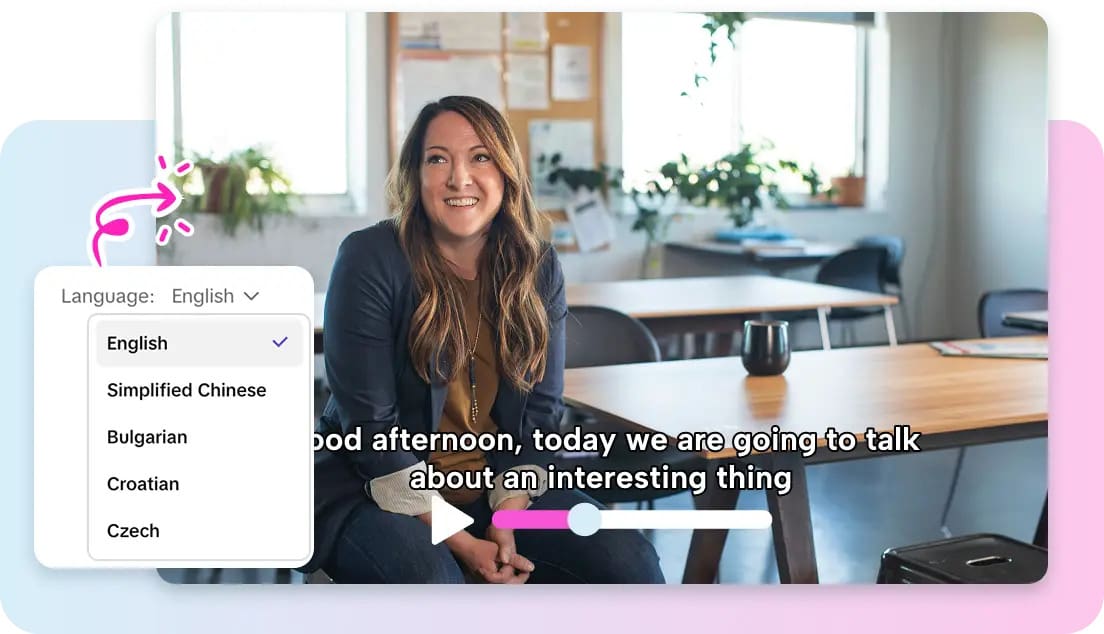
Visual impression in the modern video material is as important as the correct dialogue. Dynamic backgrounds help in maintaining the audience’s interest and in enhancing the narration. Together with synchronized speech, these pictures give the video a professional appearance. In traditional methods of editing, editing is a tedious and time-consuming process, and there is a time lag in editing one frame. This decelerates the production and can influence the consistency of the lip movements. With the development of AI-driven tools, nowadays creators can think about storytelling rather than technical issues. Apps like Pippit make the entire process easier, and with the least effort, you can switch the backgrounds and scenes. By integrating lip sync AI technology, Pippit ensures avatars remain in perfect sync while adapting seamlessly to new visual contexts.
The Relationship Between Backgrounds and Lip Sync Accuracy
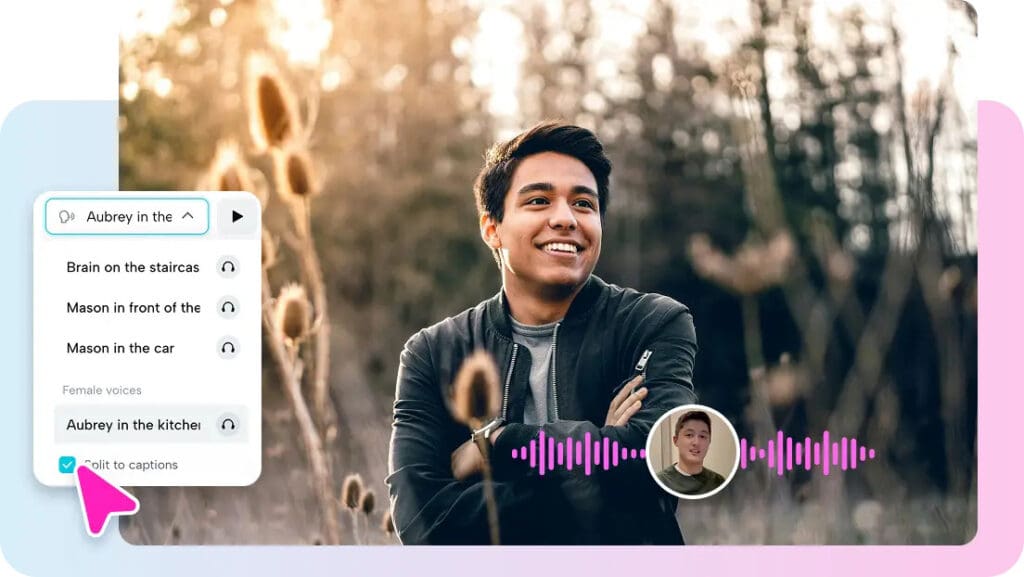
The background plays a role in the perception of speech and movement of the character by the audience. The sudden change in the visual setting can disrupt the perception of the dialogue, although no sound changes. The visuals are continuous, which helps the viewer to remain interested in the story. The cutoffs of scenes must be smooth so as to keep the synchrony of speech and lips. The AI avatars created by Pippit are able to react to any changes in the background by automatically adjusting their position and lighting to avoid causing any kind of disruption to the speech synchronization. This fusion keeps up the feeling of immersion and provides the ability to be creative. Background planning also assists in enhancing the interconnection between the dialogue and the background in video projects that have more than one scene, which enhances understanding and creates retention.
Pippit’s AI Background Transformation Capabilities
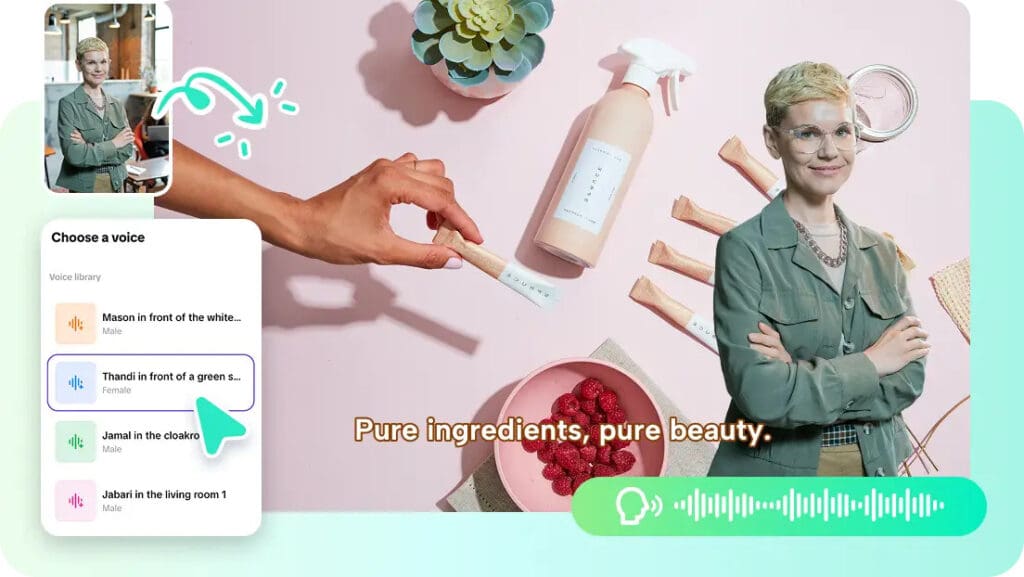
Pippit offers one-click background replacing, in which creators can swap entire environments with no need to edit the frames. The AI-powered scene detection will be able to automatically identify the avatar and the objects nearby, and any resizing or repositioning of the avatar will not cause any visual loss. The avatars are properly placed on the site, and therefore, the lips are accurate regardless of the complexity of the background. The avatars are put at the right location, either indoors or outdoors, and the movements are natural and adaptive. This becomes possible through the elimination of repetitive work that is usually associated with the replacement of scenes. The AI can keep its timing and coherence even in cases when it relies on more complex visual effects or moving objects, and all transitions do not appear to be difficult or amateurish. For creators experimenting with photo to video AI content, these features allow rapid transformation of still images into engaging animated environments.
Designing Scene Flow for AI Lip Sync Videos
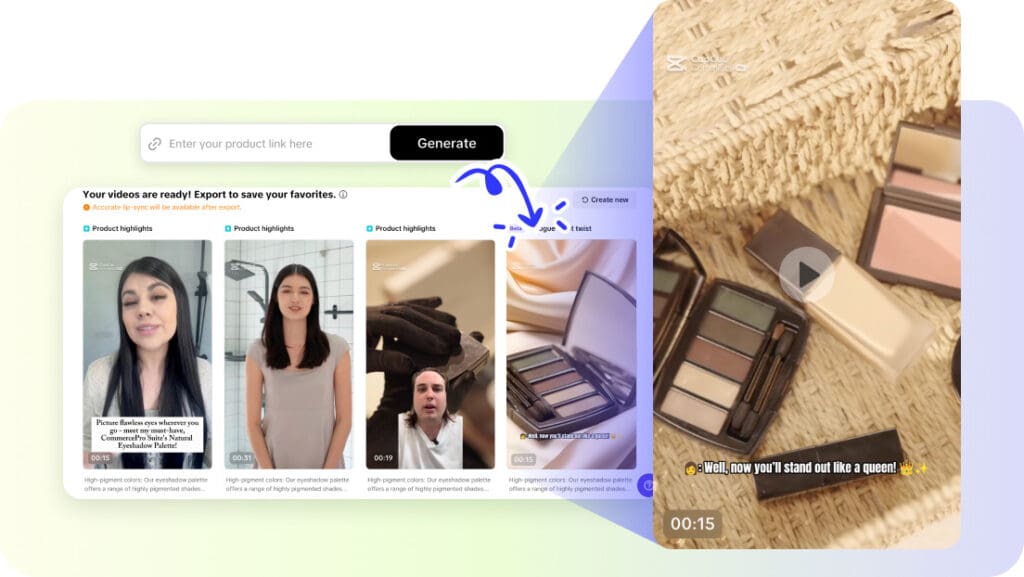
Scene flow is a plus in telling stories and audience participation. The conversations should be timed with every transition, and the graphics should be supportive of the speech. The impact of the script is furthered by the correspondence of the environments to tone and story. In one example, a dramatic conversation can be set on a dark or gloomy background, and on a cheerful and sunny background, one can place the enthusiastic content. Tactical use of backgrounds reinforces key messages and highlights areas of concern, taking the audience to concentrate on important things. Pippit enables the designer to see transitions between scenes and perfectly synchronized avatars and captions. This allows the manipulation of pacing and environment without disturbing the precision of the lip movements or the involvement of the viewer.
Steps to Change Backgrounds And Scenes Quickly With Lip Sync AI Editor
Step 1: Enter the scene-ready avatar editor
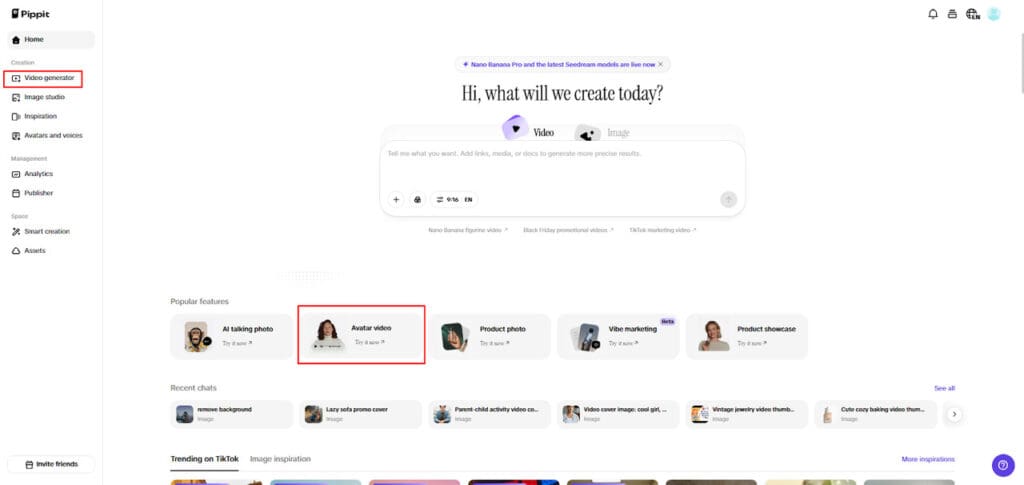
Log in to Pippit and open “Video generator” from the left-hand menu. Under Popular tools, choose “Avatar video” to begin creating scene-based videos. This environment lets you combine lip-synced avatars with flexible visual settings for faster background changes.
Step 2: Choose your avatar and adapt visuals with the script
Pick an avatar from the “Recommended avatars” list using filters that suit your content style.
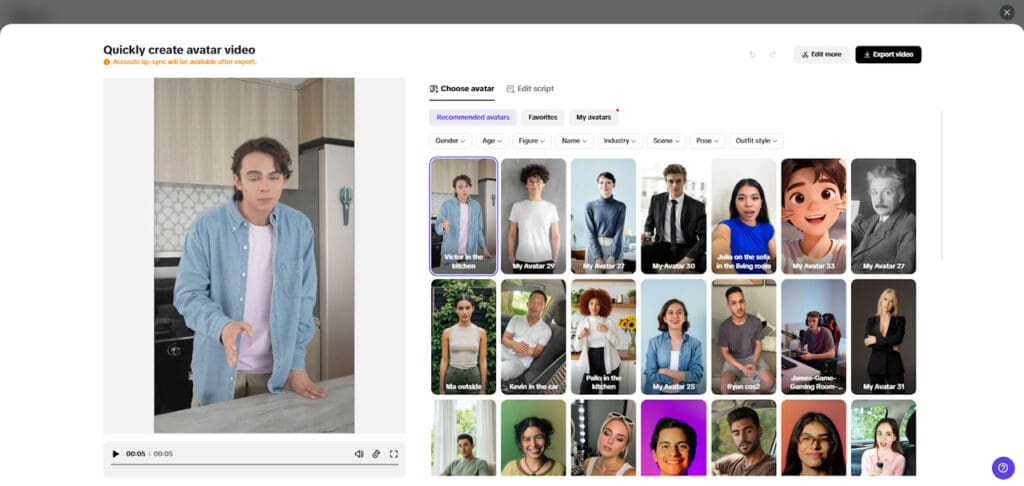
Click “Edit script” to input or adjust dialogue while previewing how it fits different scenes. You can work in multiple languages and instantly see how the avatar adapts. Use “Change caption style” to align text with new backgrounds and scene moods.
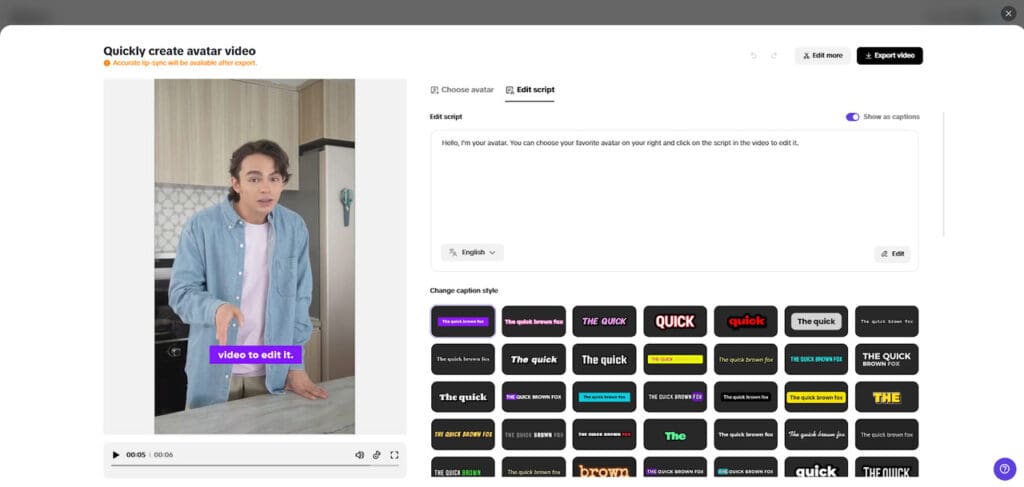
Step 3: Enhance scenes and finalize output
Select “Edit more” to adjust backgrounds, refine transitions, and polish visual flow. Add music or text overlays to support scene changes.
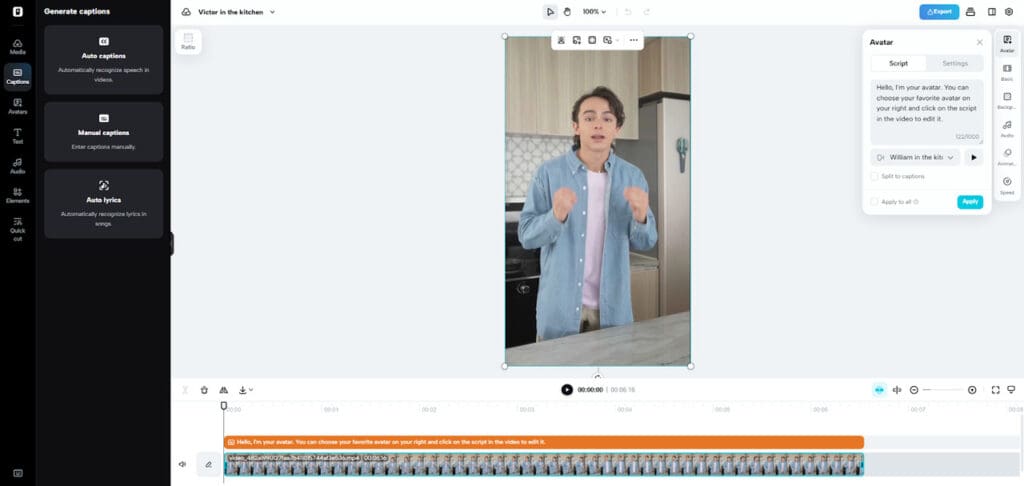
When ready, click “Export” to save your video. Share it instantly through the Publisher feature on TikTok, Instagram, or Facebook, or analyze engagement later using Analytics.
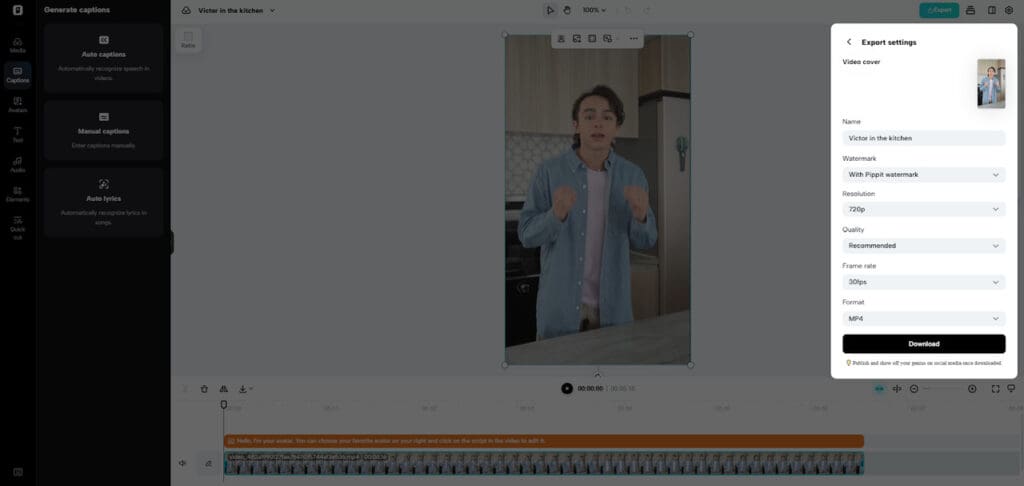
Switching Scenes Without Disrupting Lip Sync
The speech or visual jitter could be easily achieved by rapid switching between scenes. Pippit solves this by performing automated lip-tracking so that all the words are perfectly on time, even in varying conditions. It is possible to trim and edit scenes without speech alignment and position, and express avatars correctly. The color grading, lights, and shadows are automatically adjusted to ensure visual consistency. These features remove the need to make any changes manually and remove the obvious discontinuities in the presentation of dialogue. Because of this, the creators can experiment with different backgrounds or changes in the story without sacrificing the quality of the lip movements or the quality of the video.
Creative Uses of Rapid Scene Changes
The rapid changes of scenes open access to a great variety of material. Educational videos may be applied in the context of evolving images to clarify the ideas and reinforce the learning. Fast changes between product-focused scenes are beneficial to marketing campaigns to maintain the audience’s attention and underline the key features. Multilingual narration is more fun, in which the avatars can talk with different backgrounds based on the cultural or language setting. The combination of such moving images and correct lip-synchronisation makes the content easier to remember and engage with. The instruments developed by Pippit allow such transitions to occur in a seamless manner, allowing creativity without necessarily engaging in post-production. This aspect ensures that the content will be attractive to the audience and yet will be visually consistent and professional.
Optimizing Performance When Using Multiple Backgrounds
Dynamic backgrounds are superior in terms of visual appeal, but a designer must balance complexity and performance. Multi-layer and high-resolution assets can increase the file size and rendering time. Pippit can provide the best export settings in such a way that the playback can be fluent without the loss of clarity and lip-sync precision. The metrics of viewer retention and engagement can be examined, and changes to the impact can be made. The possibility of being consistent in the transitions of the scenes and consistent in terms of visual coherence in multiple backgrounds improves the general experience of the viewer. Strategic use of AI ensures both aesthetic quality and functional performance, maintaining smooth playback for all types of content generated by the AI video generator.
Conclusion
In the contemporary AI videos, the background and scene transitions are rapid, which helps in capturing attention and following the story. Pippit succeeds as he provides smooth cuts that do not break lip sync or continuity. The features of its AI-based background change, scene recognition, and placing avatars allow for developing content faster and more versatile. With adaptive visuals and proper speech synchronization, developers can transform AI lip-sync videos into professional ones. When developing educational tutorials, marketing campaigns, or any other multilingual storytelling content, Pippit ensures that all transitions between the scenes serve the purpose of the viewer’s experience and do not disrupt it.
